• Search form is empty!

  • Showing posts with label Menu. Show all posts
    Showing posts with label Menu. Show all posts

    http://robertdunaway.github.io

    http://mashupjs.github.io

    The Mashup is a learning tool that also serves as a bootstrap project for line-of-business applications.

    Mashup Applications

    One of the functions of the Mashup is allowing you to build new applications without having to build the plumbing again. Core features and libraries are available to all Mashup applications.


    The apps directory is for your applications. After installing the Mashup you’ll have a couple starter apps as a map for how to create your own.


    Placing your application in the Apps folder and using a few conventions makes integrating apps into the Mashup seamless.

    Routing

    route.config.js


    Route configurations placed in this file are combined by Grunt/Gulp and loaded at run-time.


    This approach makes it possible to drop in or remove applications without having to fiddle with routing. Each app is 100% self-contained and can be moved easily between MashupJS implementations.

    menu.config.js


    Describes the intended menu structure in JSON. The menu structure can be static or you can create a process that dynamically generates it based on user roles/rights.


    This file is concatenated with other menu.config.js files and load at run-time.

    AuthN/AuthR

    An example of a basic authentication method is implemented in the [root]/apps/mashup.


    Each application is responsible for its own security but each application can subscribe to the user session of another application. It’s likely, in companies using AD, only one session is created from which app applications derive authentication and authorization properties.


    Authentication and authorization are performed in the route configuration using “resolve”.

    Example:

    mashupApp.config(['$routeProvider', function ($routeProvider) {
        $routeProvider.otherwise({ redirectTo: '/mashup' });
        $routeProvider
        .when('/mashup/about', {
            templateUrl: 'apps/mashup/about.html',
            controller: 'mashup.AboutController',
            controllerAs: 'vm',
            resolve: {
                loadMyCtrl: ['$ocLazyLoad', function ($ocLazyLoad) {
    // you can lazy load files for an existing module
    return $ocLazyLoad.load({
        name: 'mashupApp',
        files: ['apps/mashup/about.controller.min.js']
    });
                }],
                resolveRoute: ['$route', 'mashupRouterAuth', function ($route, mashupRouterAuth) {
    return mashupRouterAuth.resolveRoute(['Administrator']);
                }],
            }
        })


    The “resolveRoute:” function is executed before the route can be resolved. If the user is not authenticated then they can be re-routed to a login page. If the user is not authorized then they can be routed to a page that says they are not authorized.


    The resolveRoute function is injected with the “mashupRouterAuth” which gives access to the “resolveRoute” function. The “mashup” in “mashupRouteAuth” is referring to the name of the app plush “RouterAuth”. You application, if named “accounting”, could be “accountingRouteAuth”.


    You can deviate and improve upon this basic design.

    Sessions

    Each application can have its own session or share. It’s possible that all your applications use one session except for a customer facing application that uses Identity Server 3. The mashup can easily accommodate multiple sessions.


    There are two different types of session. There is the “sessionService” and an application’s user session.


    The sessionService is for general use by utilities such as the logService. Only a little user information is maintained in the sessionService to let utilities know the user and application that was being used at that moment. When switching to another application within the mashup the user id from that session and its application name are updated within the sessionService.


    The application’s user session is stored in IndexedDB and retrieved by the session name.

    Basic AuthN/AuthR Example:

    (function () {
    
     getAppSession().then(function (data) {
        var appUserSession = data[0];
        var session = _.first(_.where(appUserSession.sessions, { 'appName': 'coreSession' }));
    
        var isAuthenticated = isUserAuthenticated(session);
        var isAuthorized = isUserAuthorized(session, authGroupArray);
    
        if (!isAuthorized) {
            // Just kill the page change completely.
            defer.reject();
        }
    
        if (!isAuthenticated) {
            // HERE YOU CAN SET $location.path('/login') to force authentication.
            $location.path('/mashup/login');
        }
        else {
            session.sessionLastUsed = utility.localMilToUtcMil(new Date().getTime());
        }
    
        coreRouteHelper.logRoute('mashup');
        defer.resolve(true);
    
      });
    
    })();
    
      return defer.promise;
    };
    
    var getAppSession = function () {
      return cacheService.getCache('mashupSessions');
    };
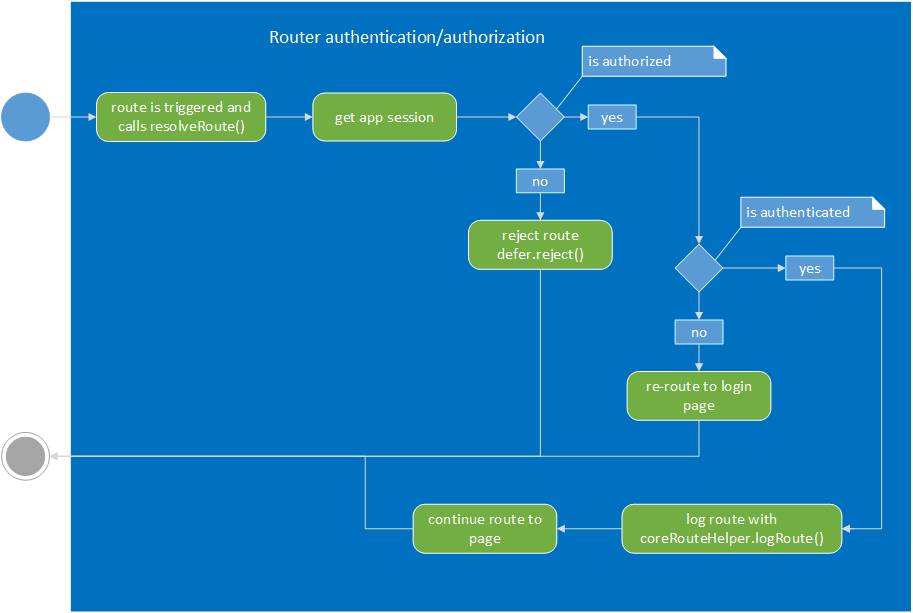


    enter image description here


    JavaScript Loading Options

    Depending on your development and delivery workflow there are multiple approaches to optimizing and building your solution.


    - Use Grunt/Gulp to create one file for each page Lazy load each JS as needed.
    - Use Grunt/Gulp to create one file per application.
    - Use Grunt/Gulp to create one file for the entire mashup and apps.
    - Initial load time versus deep linking.
    - You can optimize the initial load of the first page but when users can deep link into any place in the application the quick initial load is lost. The option I’ve chose is lazy loading components needed for any page via the router. This gives us a fairly quick deep linking load time.
    - These are line-of-business applications that are used repeatedly. Once the application has loaded once the follow up loads should pull scripts from cache.

    apps/mashup

    Welcome Page – just a landing page.

    About Page

    Displays all sessions with one tab per session and the session in the form of JSON. You’re about page will have a more custom display of user session information.


    The About page also displays what is currently cached for fast data retrieval.

    Login Page

    The login page demonstrates a basic way to get and store authentication information as a user session.
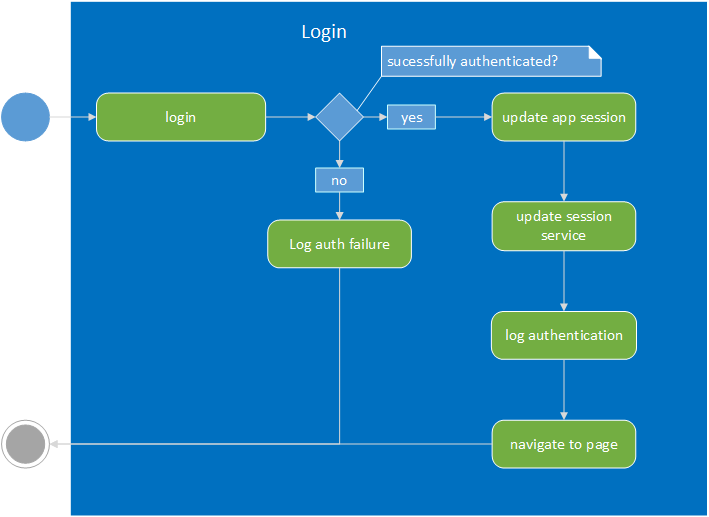

    enter image description here

    http://robertdunaway.github.io

    http://mashupjs.github.io

    The Mashup is a learning tool that also serves as a bootstrap project for line-of-business applications.

    The MashupJS Menu

    Most applications have some type of menu system linking the user to modules within the application. The MashupJS is a composite of many applications so it links the user to multiple applications via its menu system.

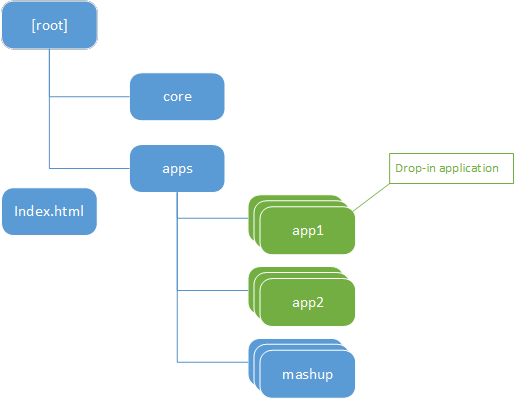
    Developers will likely develop their applications in a separate implementation of the MashupJS and copy their applications directory to the deployment MashupJS. For this to work the MashupJS must adopt a “drop-in” approach to adding applications.

    Using Grunt/Gulp the mashup not only combines routes between multiple applications into a single routing system but pulls and displays application menu items giving the user a unified view of corporate applications.

    File Structure for Drop-in Applications

    In the example below app1, app2, and mashup all have items for the mashup menu.
    enter image description here


    MashupJS menu items are stored in a JSON file with the name “menu.json.txt”.


    NOTE: Notice the “.txt” extension of the JSON file.  IIS is initially set up to understand HTML and TXT files but not JSON file.  The mime can be added but for the sake of simplicity I’ve decided to use “txt”.


    JSON Merge

    Using a task manager, such as Grunt/Gulp, “the menu.json.txt” files from each app is merged into a single “menu.json.txt” file and placed into the “dist” directory.

    A simple Grunt configuration makes this possible.
    https://www.npmjs.com/package/grunt-merge-json

    Installing the Grunt plugin

    npm install grunt-merge-json --save-dev
     
    Loading the Grunt module

    grunt.loadNpmTasks('grunt-merge-json');
    Grunt configuration
    "merge-json": {
        menu: {
        src: ['apps/**/menu.json.txt'],
        dest: '<%= distFolder %>/menu.json.txt',
        },
    },
     

    Boiler plate pages

    The Mashup’s core does not have its own UI controls or pages. One of the drop-in applications in the “apps” directory must host your menu and menu logic. The “apps/mashup” application starts with a couple boilerplate pages.

    The “apps/mashup” should be replaces by your company’s boiler plate pages.
    welcome.html
    • A basic welcome page.
    login.html
    • Each mashup app can have its own login.html page or share a common corporate login page.
    about.html
    • Provides basic information about the users sessions and cached data elements.
    menu.html
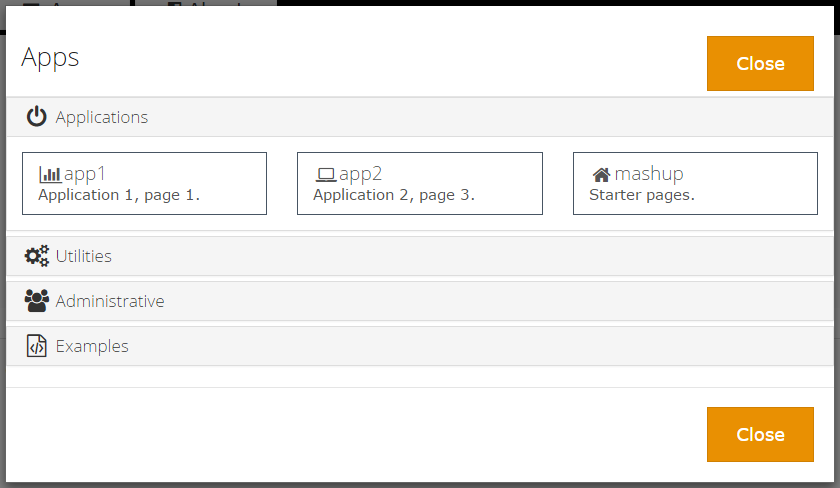
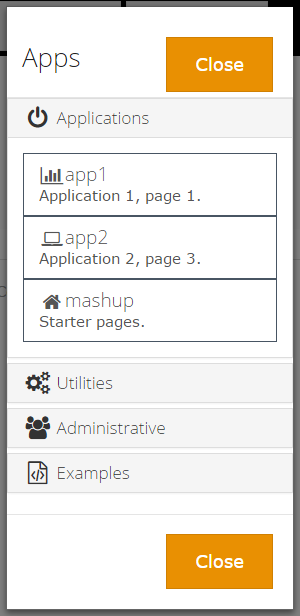
    • Provides links between Mashup applications.
    • The menu.controller.js of the application hosting the mashups menu will read and use the new “menu.json.txt”.
    The menu.json data object is basic. This example only contains two levels but there is no limit on the number of levels possible.

    The first level, the root of the JSON object, is the category. Initially the MashupJS has four categories but yours may different in number and name.

    The four initial categories are:

    Applications

    Applications you build will likely have at least one menu item in the Application category.
    Utilities
    • Often we are required to build simple utility screens that aren’t large enough to be considered an applications. These can be organized in the Utilities category.
      Administrative
    • Place to put basic user and application management pages.
    Examples
    • The MashupJS is a learning application. Code examples can be embedded into the MashupJS but hidden from users. Another option is to simply have another implementation of the MashupJS just for developers as a Front-End code library.

    Category Attributes

    name – Name of the menu item and what will be displayed on the item

    id – The id of the menu item created.

    isOpen – Indicator of whether the category is open or closed.

    icon – A class representing a Font Awesome icon.

    session – The name of the users session used to determine if the user has access to the menu item.

    role – The role required by the session to determine menu item access.

    groups – List of controls to be created in the category.

    Menu Item Attributes are similar to those of the Category Attributes with the exception of “isOpen”. Menu items that line to applications are not in an open or closes state.

    In addition to the attributes similar to Category are the following:

    Desc – This is a longer description of the menu item. Display of this depends on your applications needs and what resolution your responsive interface is loaded into.

    url – The link created when the menu item is pressed.

    Example of the “apps/app1” menu. This is combined with the menus from “apps/app2” and “apps\mashup” to form the final menu.json file uses by the menu system.


     [
        {
            "name": "Applications",
            "id": "catApps",
            "isOpen": "true",
            "icon": " fa-power-off ",
            "session": "coreSession",
            "role": "MashupUser",
            "groups": [
                {
                    "name": "app1",
                    "id": "menuItemApp1",
                    "desc": "Application 1, page 1.",
                    "url": "/app1/page1",
                    "icon": " fa-bar-chart ",
                    "session": "coreSession",
                    "role": "MashupUser"
                }
            ]
        },
        {
            "name": "Utilities",
            "id": "catUtilities",
            "isOpen": "false",
            "icon": " fa-cogs ",
            "session": "coreSession",
            "role": "MashupUser",
            "groups": [ ]
        },
        {
            "name": "Administrative",
            "id": "catAdmin",
            "isOpen": "false",
            "icon": " fa-users",
            "session": "coreSession",
            "role": "MashupUser",
            "groups": [ ]
        },
        {
            "name": "Examples",
            "id": "catExamples",
            "isOpen": "false",
            "icon": " fa-file-code-o ",
            "session": "coreSession",
            "role": "MashupUser",
            "groups": [ ]
        }
    ]
    The menu.html uses a simple ng-repeater to build the menu and the menu item attributes to set properties and css classes.
    <div class="panel-group" id="dynamicMenu">
        <div class="panel panel-default" ng-repeat="category in menuJson">
            <div class="panel-heading">
                <h4 class="panel-title">
                    <a data-toggle="collapse" data-parent="#dynamicMenu" data-target="#collapse{{category.name}}">
                        <i class="fa fa-lg fa-fw {{category.icon}}"></i> {{category.name}}
                    </a>
                </h4>
            </div>
            <div id="collapse{{category.name}}" class="panel-collapse collapse" ng-class="{ 'in': $first }">
                <div class="panel-body" ng-click="close()">
    
                    <div class="row">
    
                        <div class="col-sm-4" ng-repeat="menuitem in category.groups">
                            <a href="#{{menuitem.url}}" class="list-group-item vp-menu-btn">
                                <i class="fa fa-lg fa-fw {{menuitem.icon}}"></i><span class="h4">{{menuitem.name}}</span>
                                <p class="list-group-item-text">{{menuitem.desc}}</p>
                            </a>
                        </div>
                    </div>
                </div>
            </div>
        </div>
    </div>

    Responsive Design

    The menu is responsive. You’ll likely replace this with a Bootstrap menu or some other menu of your choosing.

    enter image description here
    enter image description here